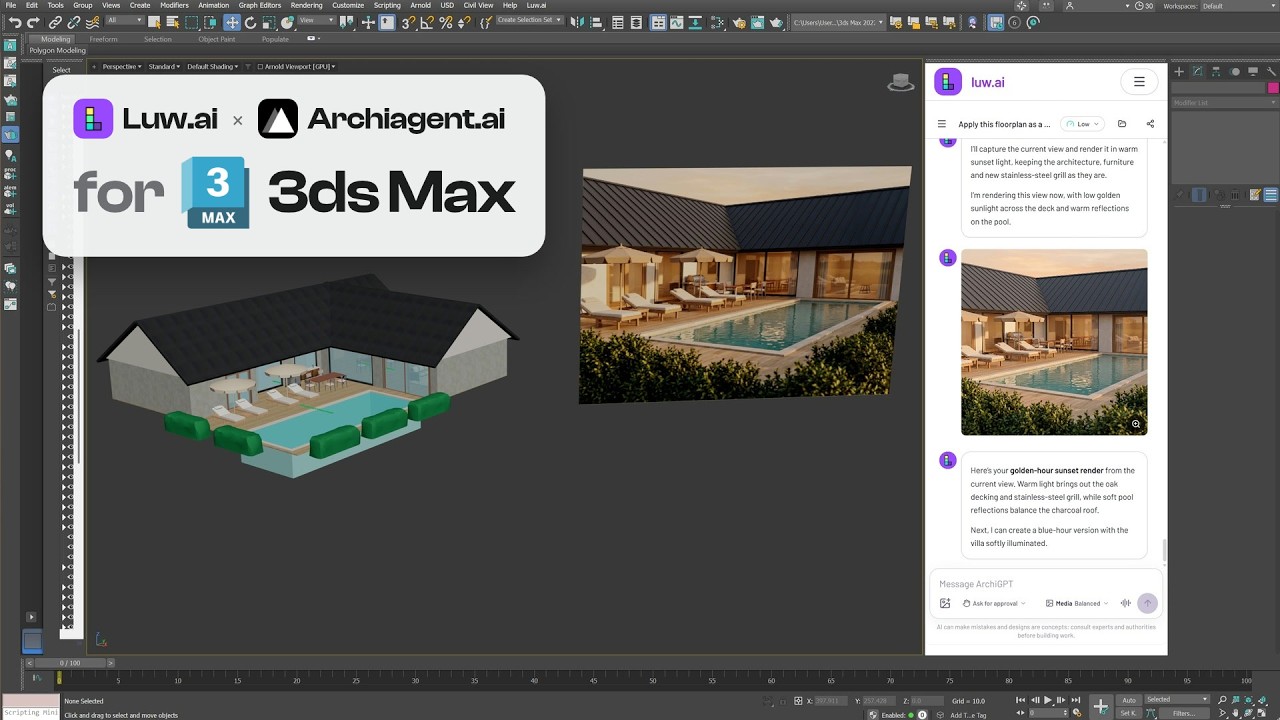




Install the extension
- Download luw_ai.rbz and save it anywhere, for example in Downloads. If you got a
.zipfile instead, unzip it first. The.rbzfile is inside. - In SketchUp, open Extensions › Extension Manager.
- Click Install Extension at the bottom left.
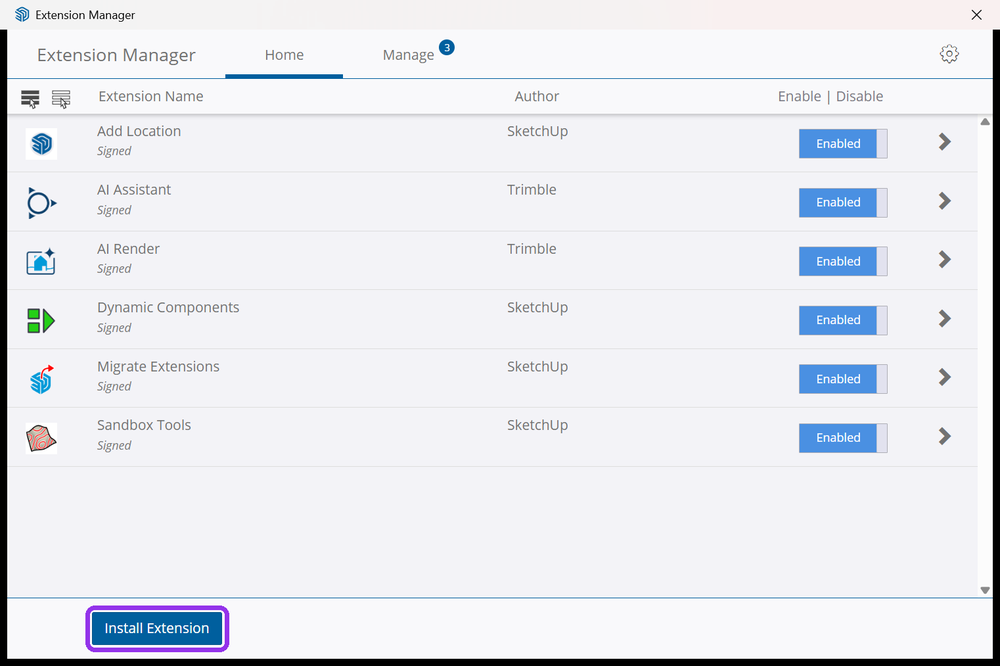
- Choose the file
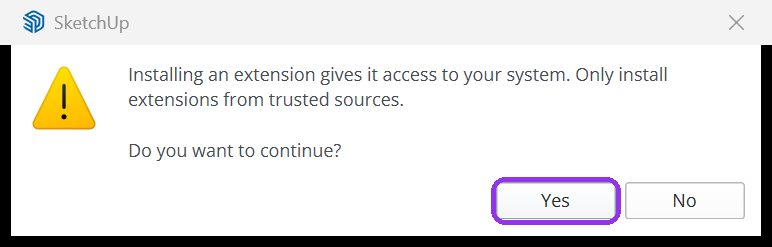
luw_ai.rbzand click Open. - SketchUp asks if you want to continue. Click Yes.
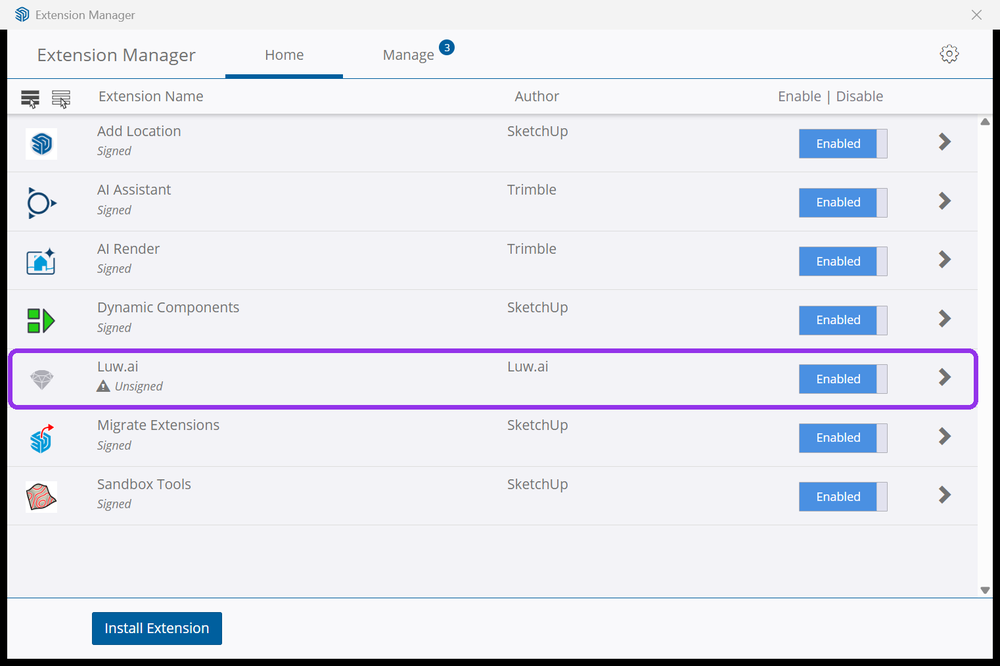
- Done. Luw.ai is now in the list and it is Enabled. It says Unsigned for now. That is normal for this version.
Open Luw.ai and sign in
- Click the Luw.ai button (a white star on black) on the Luw.ai toolbar. Or use the menu: Extensions › Luw.ai.
Can't see the toolbar? Open View › Toolbars and turn on Luw.ai.
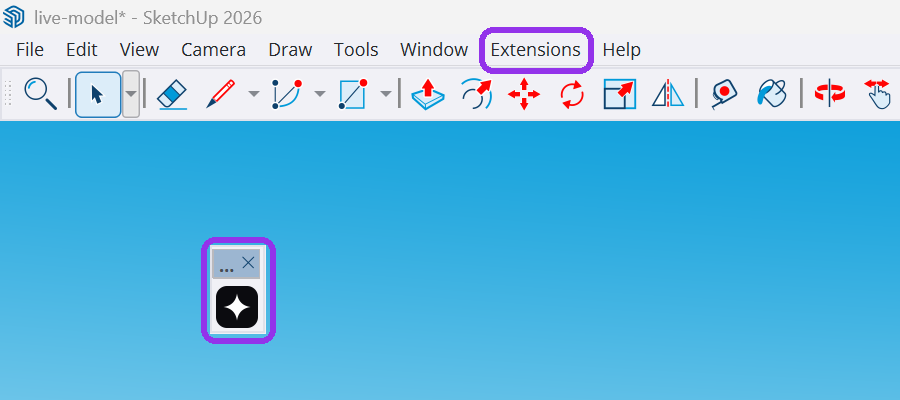
The Extensions menu and the Luw.ai toolbar button. - The Luw.ai panel opens next to your model. It is the Luw.ai web app, made to work with SketchUp. You can move it and make it bigger like any window.
- First time only: sign in with your Luw.ai account in the panel. SketchUp remembers you, so next time the panel opens ready to use.
Get your first render
- Set up your view. Orbit, pan and zoom in SketchUp until you like the picture. What you see is what Luw.ai renders.Tip: colors, materials and shadows in your model give better renders than a plain white model.
- Open Luw.ai. The panel opens on Luw.ai's home page. Click Render AI: your SketchUp view is already in it. You don't need to save or export anything.
Moved the camera? Click Capture SketchUp view on the picture to take the new view.
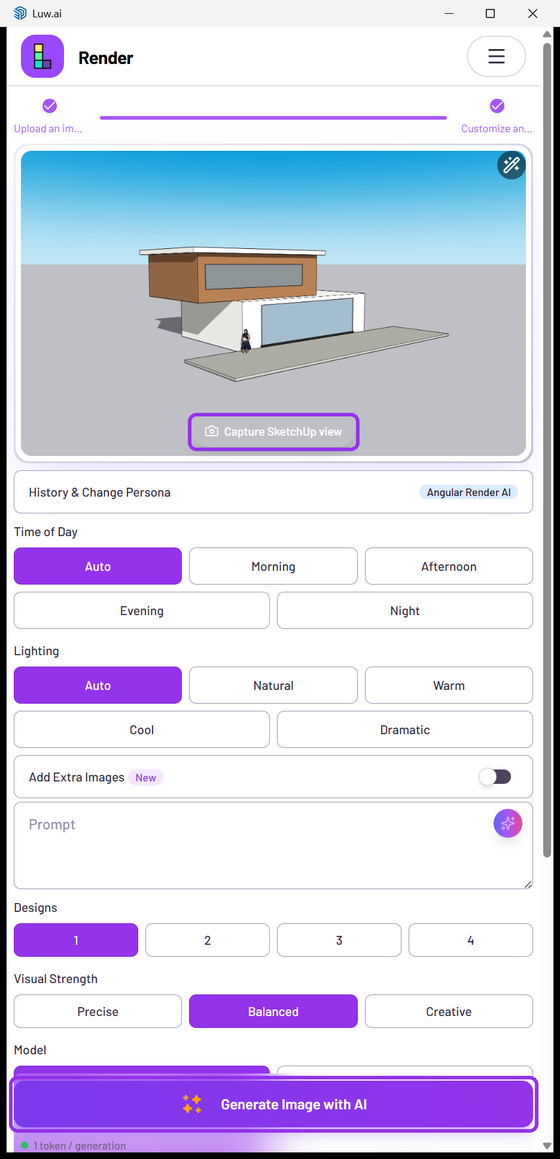
- Choose options if you like: Time of Day, Lighting, or a short Prompt such as “summer evening, green garden”. Or leave them on Auto.
- Click Generate Image with AI. One image uses 1 token. Your render appears under Latest Designs and is ready in about a minute.
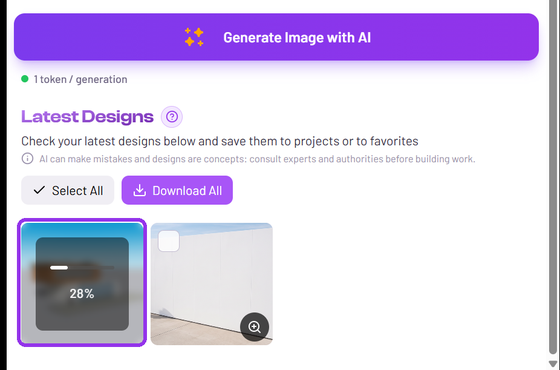
Working on it… 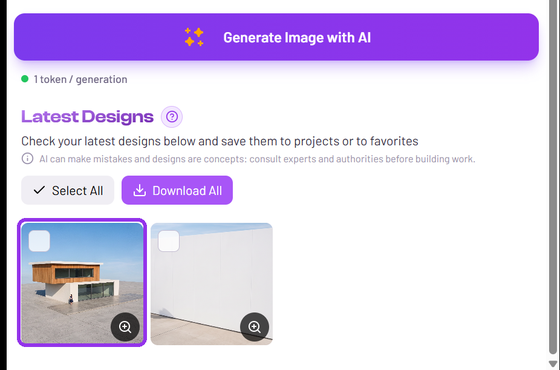
Ready. Click the picture to open it. - Look at your render. Click the picture: it opens full size in a window of its own. Close that window, and the panel shows the render: drag the slider in the middle to compare it with your model, then click Add to SketchUp at the top left.
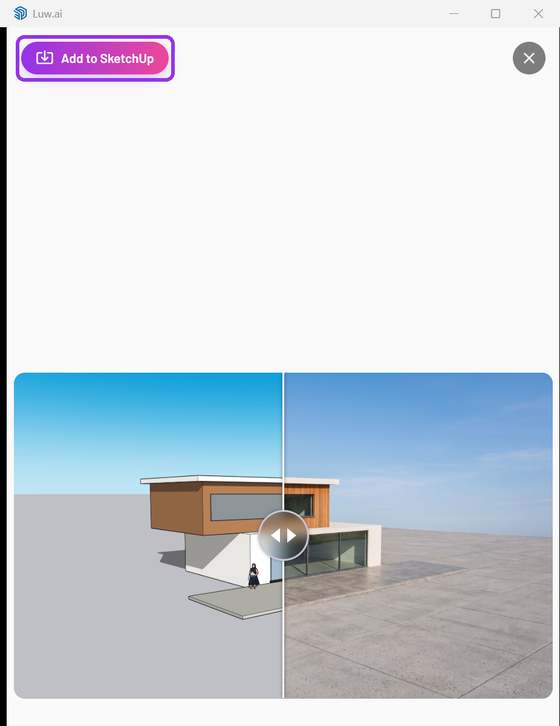
- That's it. The render is now in your model, next to it. To remove it, press Ctrl+Z (Cmd+Z on Mac) once.
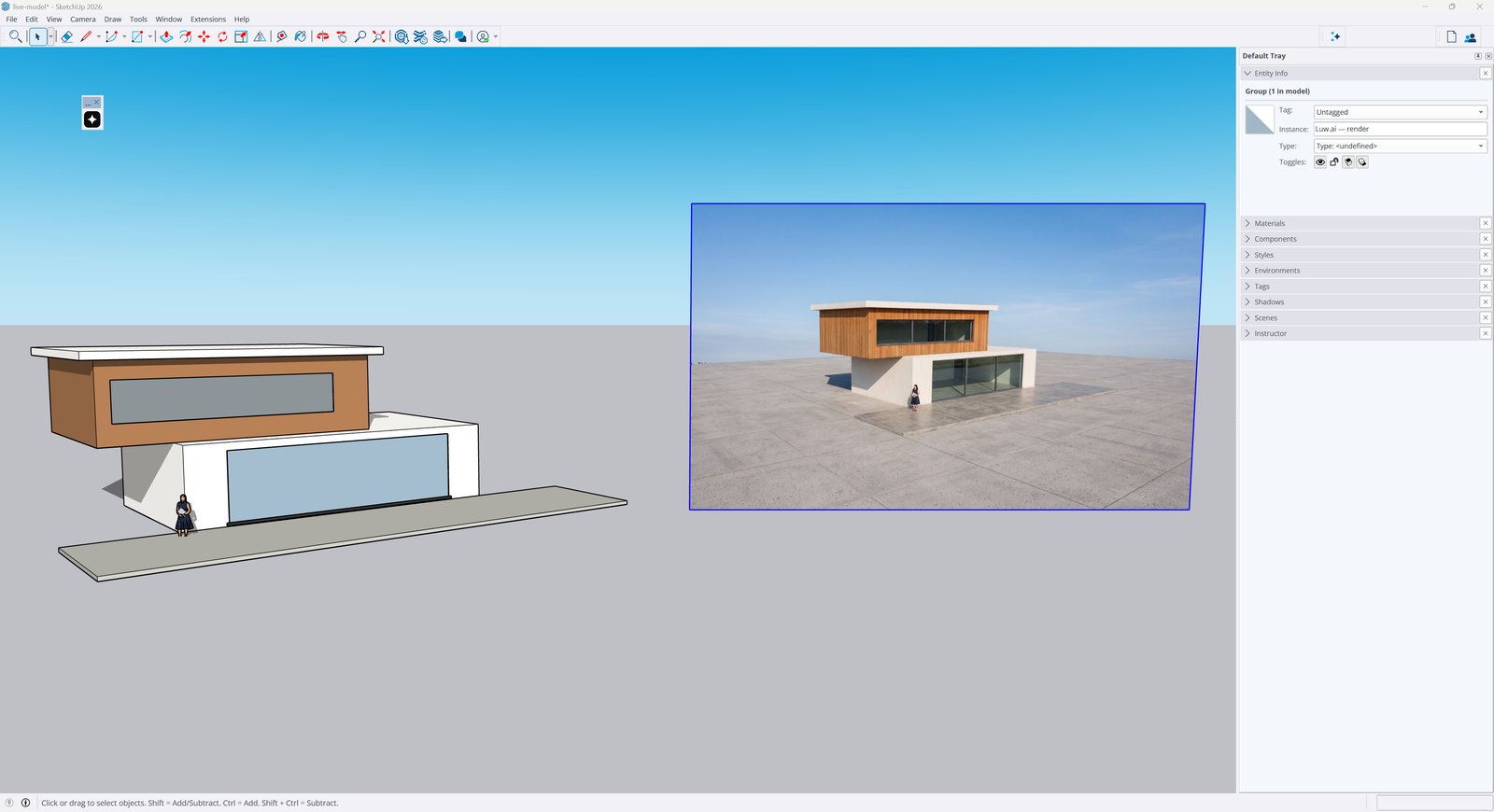
Your model and its render, side by side in SketchUp.
More tools
Open the menu (☰) at the top of the panel for more tools, such as interiors, exteriors, sketch to render and video. Most tools start with your SketchUp view. With 3DGen AI you get a 3D model, and Add to SketchUp brings it into your model as one object.
Design a building with ArchiGPT
ArchiGPT is Luw.ai's design assistant. In SketchUp it builds what you describe straight into your model, as ordinary SketchUp groups and components on their own tags, while you watch.
- Open ArchiGPT from the home page of the Luw.ai panel.
- Say what you want. Describe the building, or attach a photo of a plan you drew on paper and write something like “Apply this floorplan as a villa.” ArchiGPT builds it in SketchUp: walls, rooms, doors and windows, the kitchen, furniture, a pool.
- Change it by talking. “Give it a 35° gable roof”, “add a barbecue corner by the pool”. Attach a screenshot of the spot, or a reference photo, to show what you mean. Only what changed is rebuilt. Select something and say “this”, or name it: ArchiGPT knows your own objects too, also boxes you drew and never grouped (“delete this box”, “move the 1 m cube I drew 2 m up”). Model with it too: “cut a 1 m wide doorway in the box I drew”, “make this slab 30 cm thick”, “how many square metres is this wall?”, “draw the plot’s outline and dimension it”, “cut the view at 1.2 m”, “shadows for 21 June at 17:00 in Istanbul”. Walls and floors come in with the textures they have in Luw Studio.
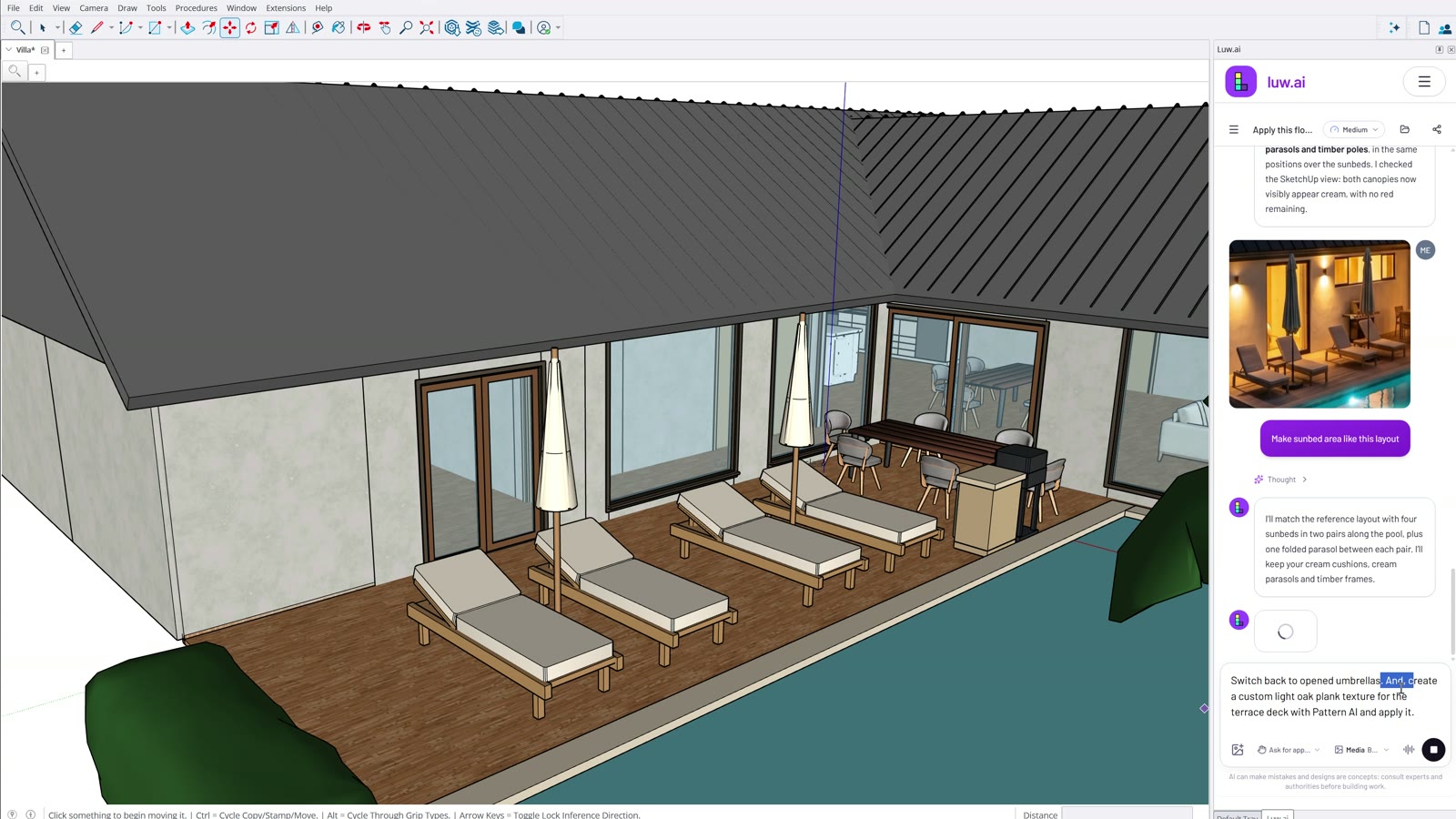
A reference photo in the chat, and the poolside rebuilt to match it. - Change it yourself, too. Move, turn, scale or delete what ArchiGPT built, or add geometry of your own, whenever you like. Your changes stay when ArchiGPT builds again, and it takes them over into the design.
- Add materials. “Light oak floors, white plaster walls, a dark grey metal roof.” Or ask for a texture of its own: Pattern AI makes a seamless one for the model.
- Render it. Frame a view in SketchUp and ask for a render. ArchiGPT shows what it will cost and waits for your Approve. Click the result to see it full size, or put it in your model with Add to SketchUp.
Undo: each change ArchiGPT makes in SketchUp is one step. Press Ctrl+Z to take it back.